
🚨 Important Notes Before You Begin:
1. This is a Google Chrome Extension:
The RGD Auto Booker & Refresher extension is designed exclusively for Google Chrome. It will not work on other browsers, with the exception of the Kiwi browser for Android devices. Ensure you’re using Google Chrome for a seamless setup.
2. Start with a Desktop Device:
While it may be possible to set up the extension on a phone or tablet, these devices are not ideal for Google Chrome extensions. We highly recommend using a desktop or laptop for this process. If you’re determined to use a mobile device, refer to the attached articles for specific instructions. Apple devices and Android.
3. RGD Account
Before you start this process, be sure that you have registered with RGD and have verified your email address. If you can’t access your RGD account on the website, you won’t be able to download the software.
📖 Steps To Download RGD’s Amazon Relay Auto Booker & Auto Refresher 👇
1. Be sure that you go to the “Plans” section once you are logged in to your RGD account, as this is the only place from where you can install your software.

2. If the trial is activated correctly, you'll see a download icon on the bottom right corner of the business plan.
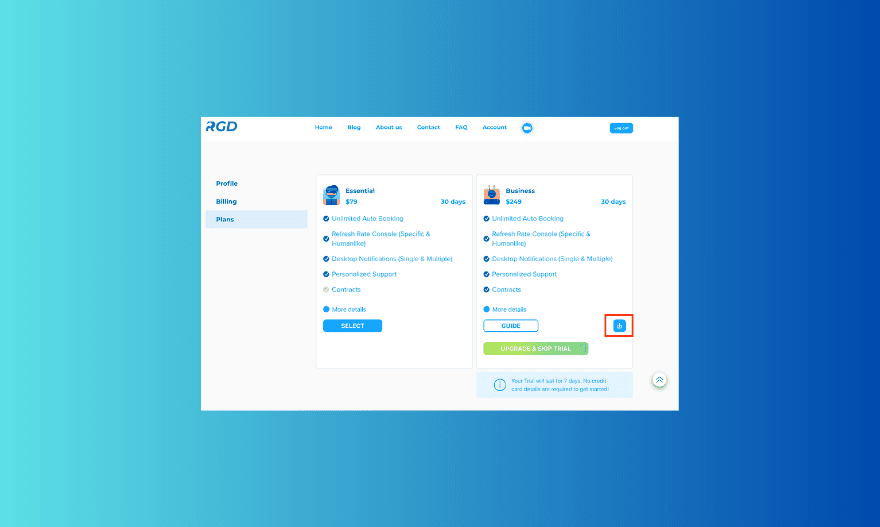
❗️Note: Be aware that many users that have previously downloaded and activated the trial will no longer see the following download button. Your free trial is available once. It is being monitored by your company name and not a new user name.
❗️Note: We have noticed that members have encountered trouble when registering multiple accounts with us. It is easy to lose track of where and when you have activated a trial. The same applies to paid accounts. If you have created multiple accounts with us, download the file from a paid account to avoid confusion.
3. If everything is well and you see a download icon, please press on it, and the download process will begin immediately.

4. Be aware that you are downloading a “zipped file”, meaning that the file is compressed to be transferred quicker. It is your responsibility to unzip the file once it's downloaded for it to work. It will most likely fall under downloads, but I recommend placing it on your home screen to help you visually with the process.

5. There are a few ways to unzip a file, let’s start by looking at the Apple devices first.
➡️ You can “double click” to unzip.
➡️ "Right click" and press “Open With” then press “Archive Utility.
6. Windows devices
➡️ "Right-click" and press “Extract all.”
➡️ "Double-click" and simply drag out the unzipped file to your desktop.
❗️Note: Unzipping is a crucial step as the zipped file will not work in future steps.
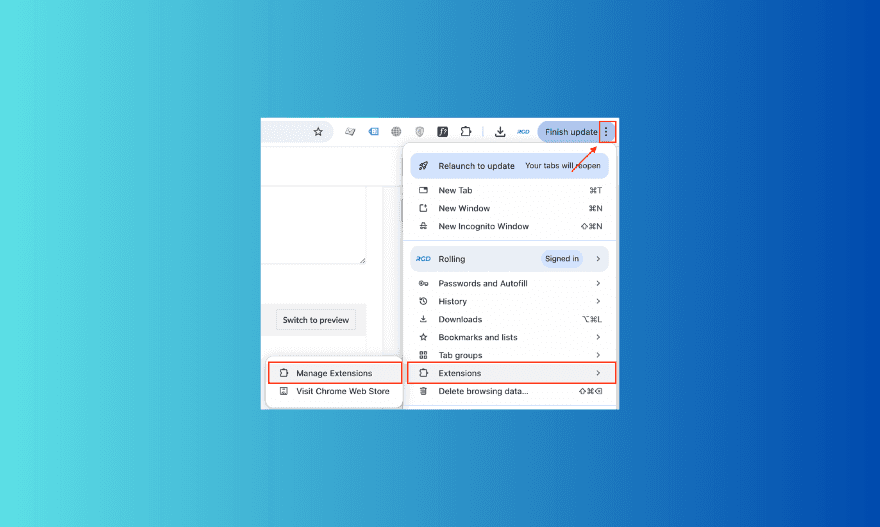
7. It is time to open Google Chrome settings. Next, Click on "Extensions" and then on "Manage Extensions."
8. You are now an advanced Google Chrome user. Activate “Developer Mode.”
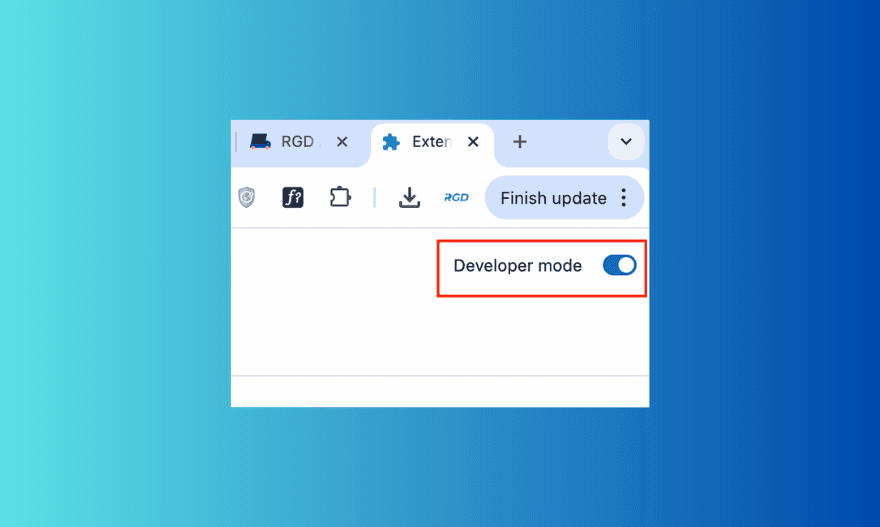
9. Once the “Developer Mode” is activated, you can press “Load Unpacked” and pick the unzipped RGD folder. Make sure to choose the ENTIRE folder, and NOT just the folder main.

10. Excellent! If you’ve followed the steps correctly, you will see your extension appear in Google Chrome like this 👇. Please note that Google Chrome may display certain errors. This is because the extension is not currently available in the Chrome Web Store. Don’t worry—these errors will not affect the extension’s functionality. Simply close them and ensure the extension is activated.

11. Now that you’ve successfully downloaded and activated the Google Chrome extension, you’re ready to head over to the Amazon Relay Load Board. Important: The extension only activates on the Amazon Relay Load Board page. If you’re already on this page, refresh the page to apply the extension. Once refreshed, you should see the extension working seamlessly. Here’s an example of how it should look 👇.

If you experience any issues or the extension isn’t displaying as expected, please reach out to us at admin@rolling-global.com. We’ll gladly arrange a one-on-one meeting to ensure everything is set up and working perfectly for you.